If I connect Google Calendar, does Google see my period?
No. Connecting Google Calendar to Kiyo does not send your Kiyo cycle records or estimates to Google Calendar. You can see your Google commitments inside Kiyo with cycle context beside them.

Storage on Kiyo is a separate question. If you sign in and give the required consent to use cycle features, your cycle records sync to Kiyo’s servers. They are not stored only on your device. Calendar events follow different paths depending on where you created them.
What happens when you choose a date?
Take this hypothetical planning scene. You have been offered two dates for a client workshop. Your Google Calendar already contains a project review that week. In Kiyo’s Monthly view, you check those commitments alongside your estimated cycle.
Perhaps you have noticed that you prefer some breathing room around your period. You might choose the workshop date with fewer nearby commitments. You can also keep your original choice. An estimate cannot confirm when your period will arrive or how you will feel, and Kiyo does not assign work by cycle phase.
Kiyo is a planner that shows estimated cycle phases beside events, to-dos and habits. The cycle appears as context in Monthly. Looking at it while choosing the workshop date does not create a period event in Google Calendar. If you create the workshop as a Kiyo event, sending that event to Google depends on your sync settings; your cycle records do not go with it.
What about a period entry I already made in Google?
An event you manually titled “period starts” in Google Calendar is an ordinary Google event, already stored there. Connecting Kiyo does not turn it into a Kiyo cycle record. The distinction here concerns Kiyo’s cycle records and estimates.

Screen sharing is a separate consideration. Someone watching your shared Kiyo screen, or looking at your device, may see the cycle information displayed there. Check what is visible before showing your month in a meeting. Keeping cycle records out of Google Calendar does not hide the screen you choose to share.
Where each kind of information goes
The distinction between Google-origin events and Kiyo-created events matters here. “Device” means the device on which you use Kiyo.
| Source and information | Device | Kiyo servers | |
|---|---|---|---|
| Google-origin Calendar event content: title, time, location, notes, guests and links | Fetched directly from Google and kept on device | This content is not transmitted or stored here | Holds the original event |
| Google event IDs and Kiyo-added color or D-Day marks | Used with the event | Stored here | Original event remains in Google |
| Events created in Kiyo | Used in Kiyo | Stored as synced data | Can be sent when outbound sync is enabled |
| Connected Google Tasks titles, dates and completion states | Used in Kiyo | Stored through a separate task sync flow | Synced with Google Tasks according to the configured direction |
| Google connection authorization tokens | Connection used on device | Stored to provide the connection | Used for Google authorization |
| Cycle records and estimates, with sign-in and required consent | Shown in Kiyo | Cycle records synced and stored here | Not sent to Google Calendar |
The Google-origin Calendar content rule does not cover Google Tasks. Event IDs, Kiyo-added marks and connection tokens also have server storage, so not all Google-related information stays on your device.
What can you choose before connecting?
Google connection is optional. It requires sign-in and Google permissions, and supports your primary Google Calendar. Review the sync direction in settings. The connection can send Kiyo-created events when enabled, so it should not be treated as entirely read-only.
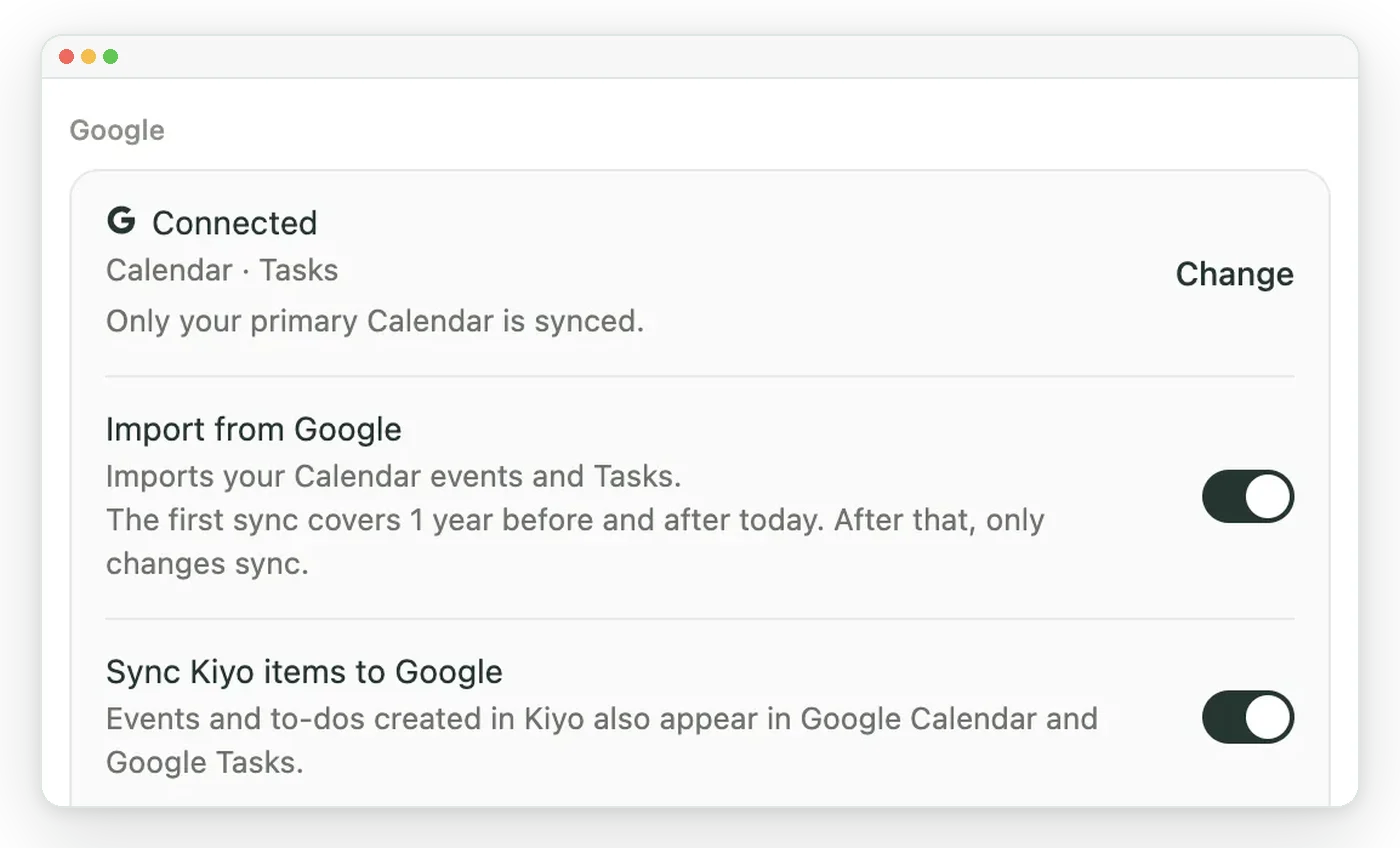
Cycle features are off by default and require separate consent to use. You can connect your calendar without adding cycle context. Guest-entered content stays on the device, although usage information collection is separate; guest use does not mean that no information ever leaves the device.
The support page covers setup. For the planning view, read seeing your cycle alongside Google Calendar; the period planner page explains the optional cycle feature.