How to Remove Only What Kiyo Added to Google Calendar
You choose whether Kiyo and Google work one way or both ways, and you can remove only what Kiyo added to Google while keeping what you entered in Google yourself. Kiyo is a personal planner for events, to-dos and habits on the web and iPhone. Reset Kiyo does that cleanup, but it also permanently deletes Kiyo-created events, to-dos, habits and notes—not just the copies cluttering your calendar.

One way only is fine
Connecting a planner does not have to mean exchanging everything in both directions. Kiyo connects with Google Calendar and Google Tasks in the direction you choose.
Google → Kiyo only brings your Google plans into Kiyo so you can see them alongside your habits and other planning. Kiyo sends nothing back: no new copies, edits, deletions or to-do completions reach Google from Kiyo. This fits a day where Google holds your appointments and tasks, and Kiyo gives you a place to plan around them.
Kiyo → Google only sends what you plan in Kiyo to Google. Google items are not shown inside Kiyo for that device. This fits a day where you create plans in Kiyo and want them available through Google too.
Neither arrangement sends habits to Google. The connection covers your primary Google Calendar and default Google Tasks list, so it is worth checking where your existing plans live before choosing a direction.
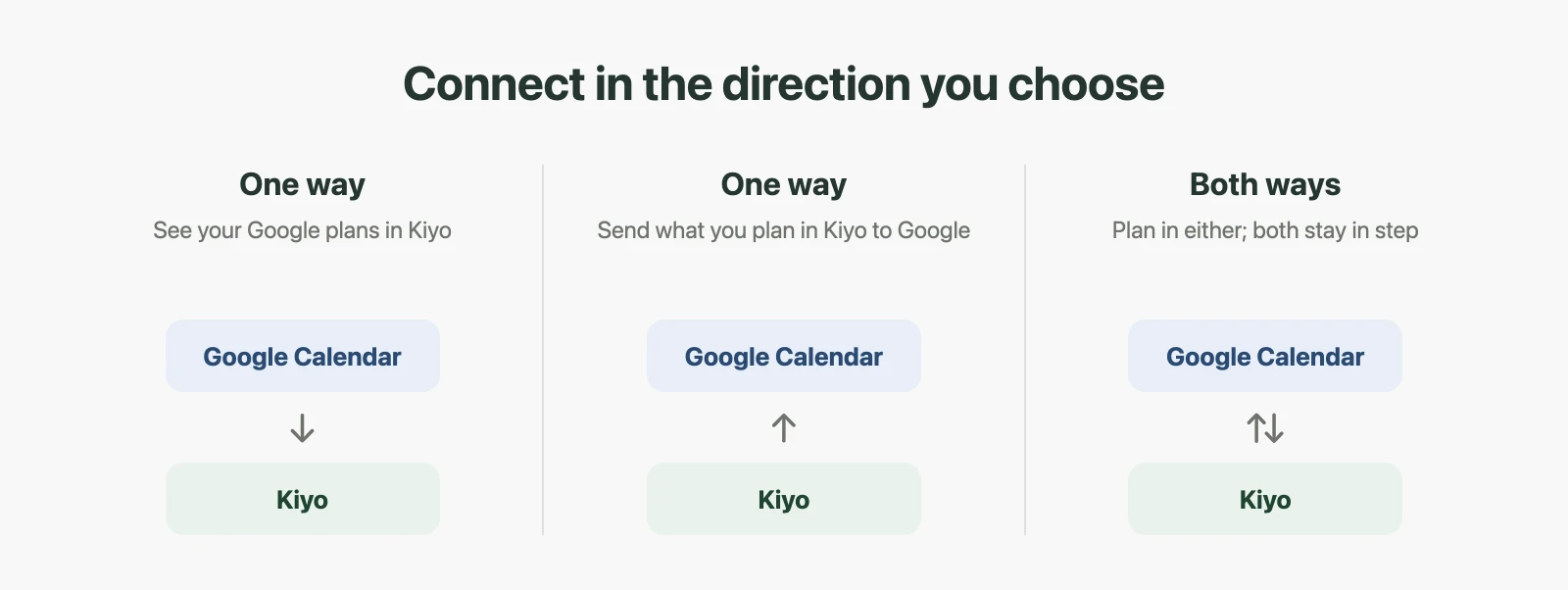
To choose after signing in and connecting Google, open Settings → Google: Import from Google controls Google → Kiyo, and Sync Kiyo items to Google controls Kiyo → Google. Keep one on for one way, or both on for both ways—the default after connecting.
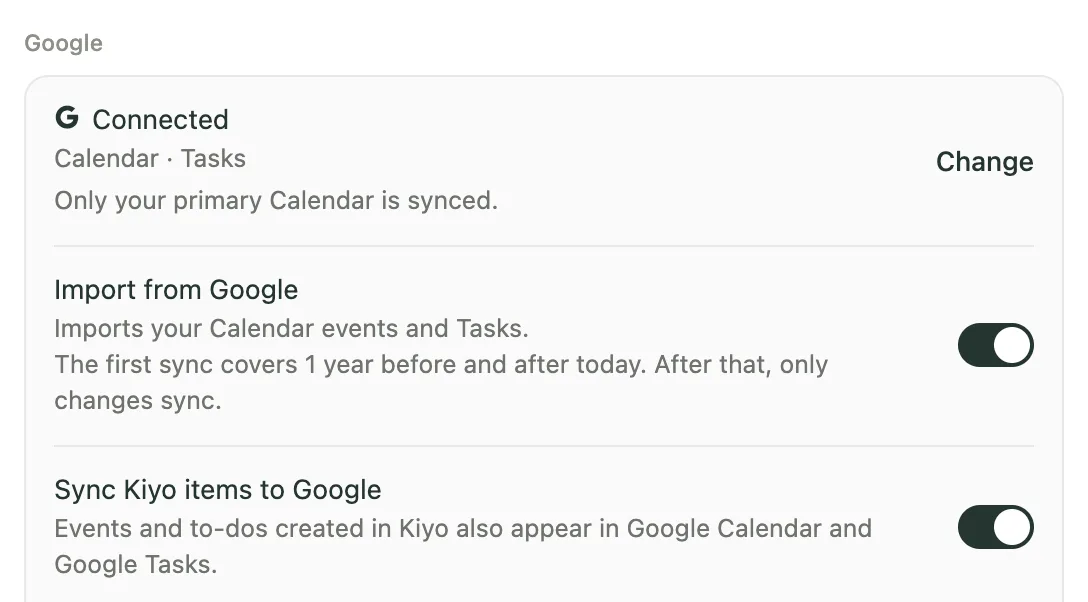
Both ways is possible too
Both directions are available together, and that is the starting arrangement when you connect. Your Google plans can appear in Kiyo, and changes can travel back to Google.
For calendar events, the shared details are the title, start and end time, all-day status and notes. For to-dos shared with Google Tasks, they are the title, completion, date and deletion. A to-do’s time of day stays in Kiyo.
Existing Kiyo items are not silently uploaded when you first connect. Kiyo asks once whether to include them; without an answer, only items created afterward are eligible to be sent.
Google Calendar stays your schedule of record. Kiyo works alongside it, bringing events, to-dos and habits into your Daily planning. For the connection process, see how to connect Google Calendar, Google Tasks and habits in Kiyo.
Return Google Calendar to just what you entered there
If your calendar gets too busy, Reset Kiyo can remove the events Kiyo added while preserving your Google-entered appointments. Kiyo records which Google items it created, so it can distinguish a Kiyo-made planning block from a dentist appointment you entered in Google.
The before-and-after example shows that boundary. It illustrates removal by origin; it does not promise to restore every previous edit to a Google event.
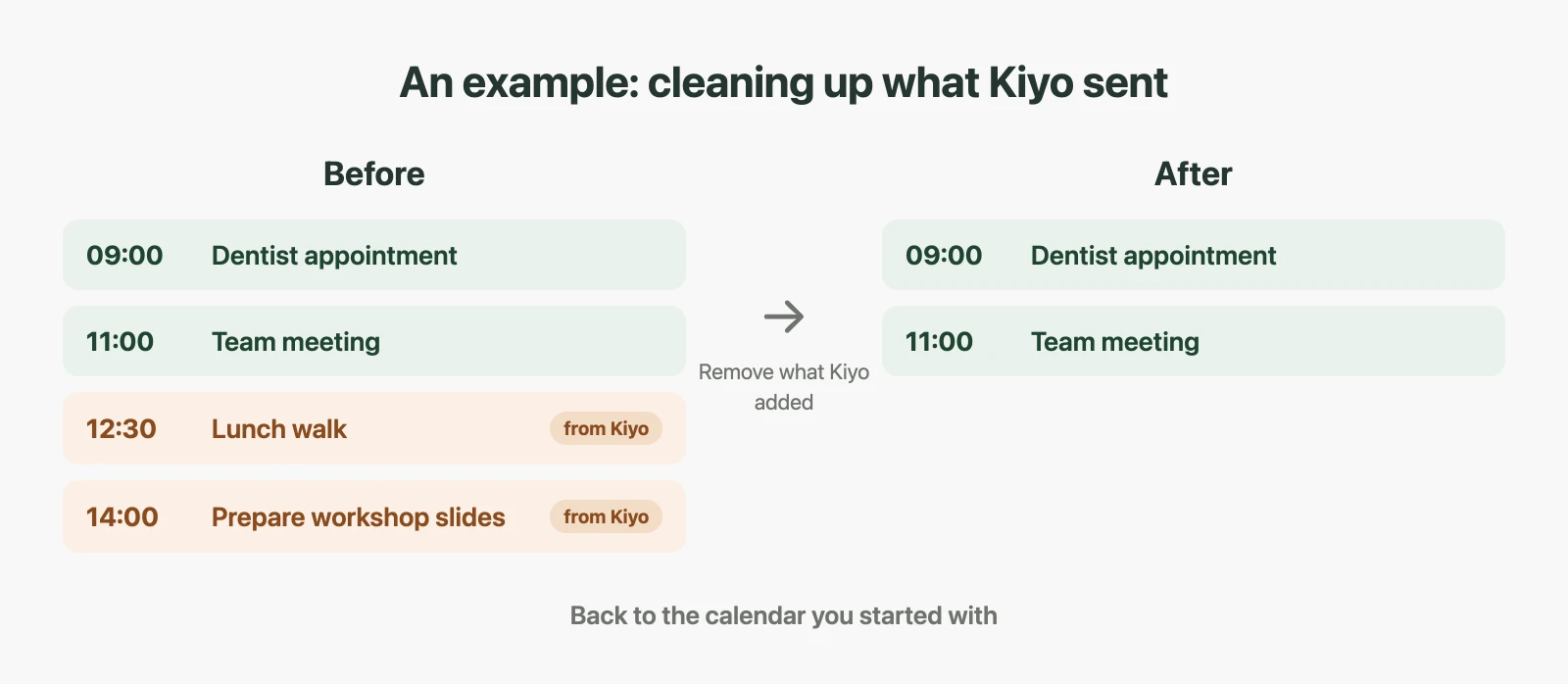
The scope is broader than the calendar picture. Reset permanently deletes:
- All Kiyo-created events and to-dos, including undated to-dos.
- Habits and their check-in history.
- Notes, including Daily notes.
- Colors and countdowns Kiyo added to Google events; the original events stay.
Events brought in from Google Calendar and tasks brought in from Google Tasks are kept. Cycle records, cycle preferences and device preferences are kept too. Reset works without an account; if you are signed in, the deletion also reaches your other devices.
To run it, open Settings → Reset data → Reset Kiyo. Kiyo also removes its copies from Google only if Google is still connected and Sync Kiyo items to Google is on at the moment you reset.
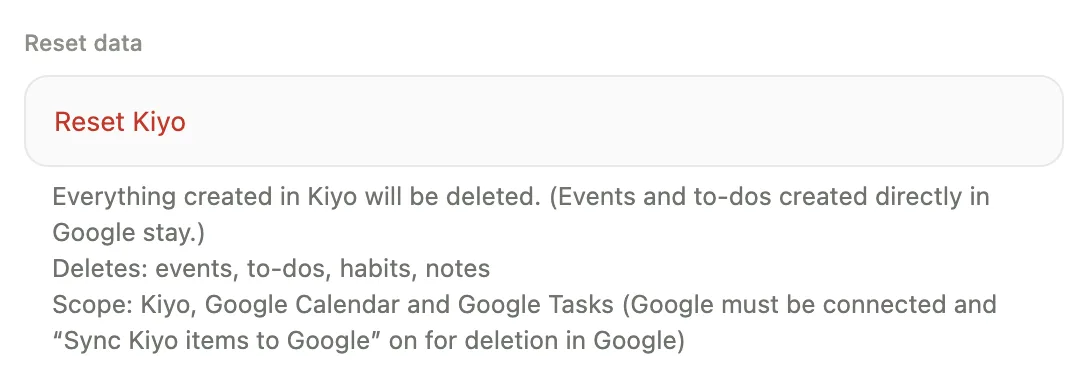
Everything created in Kiyo will be deleted. (Events and to-dos created directly in Google stay.)
Deletes: events, to-dos, habits, notes
Scope: Kiyo, Google Calendar and Google Tasks (Google must be connected and “Sync Kiyo items to Google” on for deletion in Google)
There are two confirmation steps; the second warns, “This cannot be undone.” Read the full scope before confirming, especially if you have habits or notes you want to keep.
Google deletions are queued and sent at the next sync, usually within seconds while Kiyo is open. Keep Kiyo open, then check Google Calendar and Google Tasks to confirm the copies have disappeared. The confirmation finishes your request; the Google check establishes that the cleanup has arrived.
Reset, check Google, then delete your account
Deleting your account is a separate action. It removes Kiyo’s server and device data, including cycle records, and revokes Google access. It does not remove Kiyo’s copies already in Google.
If you want those copies removed before leaving, use this order:
- Keep Google connected, with Kiyo still sending to Google (see the reset section above).
- Run the reset and complete both confirmations.
- Keep Kiyo open, then check Google Calendar and Google Tasks. Confirm that Kiyo’s copies are gone.
- Only then delete your Kiyo account.
The third step matters because account deletion also clears queued Google deletions. A reset followed immediately by account deletion can leave copies behind before Google receives the cleanup.
After account deletion, remaining copies must be removed by hand in Google. For details about data handling, read Kiyo’s privacy policy; if the result differs from what you expected, contact support.
What does each calendar integration actually share?
Before connecting any planner, check which direction information travels and where tasks arrive. “Two-way sync” can describe changes to existing calendar events, or tasks represented as events in a separate calendar.
The table describes integration scope without ranking the tools. “Not mentioned” means the cited help pages do not establish that capability.
Checked October 12, 2026.
| App | Google Calendar events | Google Tasks | To-do time of day | Event notes |
|---|---|---|---|---|
| Kiyo | Google → Kiyo, Kiyo → Google, or both; primary calendar only. Both ways shares event titles, start/end times and all-day status. | Same direction choices; default list only. Shares title, completion, date and deletion. | Kept in Kiyo only. | Travel with the chosen direction; editable from Kiyo when changes can travel to Google. |
| Structured | One-way import. Imported time and day cannot be changed; Structured tasks cannot be exported. | — Not mentioned in its help. | — Tasks are not exported. | Imported notes cannot be changed. |
| Notion Calendar | Connects Google, iCloud and Outlook calendars; also shows Notion databases with a date property. Direction is not specified in the cited pages. | — Its help pages don’t mention Google Tasks. | — Not stated in the cited help. | — Not stated in the cited help. |
| Todoist | Your Google events are read-only in Todoist. Tasks with date, time and duration become events in its own “Todoist” calendar; edits to linked events there sync back. | — Not mentioned in its help. | Carried as calendar-event times in the Todoist calendar. | — Not stated in the cited help. |
| TickTick | Two-way in both modes described by its official help. | — Not mentioned in its help. | Timed tasks become calendar events in integration mode. | — Not stated in the cited help. |
Sources: Structured’s calendar import guide, Todoist’s Calendar integration guide, Notion’s calendar compatibility and database guide, and TickTick’s Google Calendar guide.
Recurring items deserve a separate check: Todoist’s guide says rescheduling the current occurrence of a recurring task does not update the recurring calendar event.
Why a to-do’s time stays in Kiyo
The Google Tasks API stores a due date and discards the time portion. Kiyo therefore keeps a to-do’s time in Kiyo and shares the task’s title, completion, date and deletion. Todoist and TickTick describe carrying task times through calendar events instead—a different destination from Google Tasks.
For other boundaries, see what Kiyo sends to Google and what it stores separately.
Common questions
Can I see Google plans in Kiyo without sending anything back?
Yes. Choose the Google → Kiyo direction only. Google plans appear in Kiyo, and Kiyo sends no new copies, edits, deletions or completion changes to Google.
Do I have to use both directions?
No. Both ways is the default after connecting, but either direction can stand alone. Choose Kiyo → Google only if you want to send Kiyo plans to Google without showing Google items inside Kiyo for that device.
Will reset delete appointments I entered in Google?
No. Google-created events and tasks stay. Reset removes Kiyo-created content and the colors and countdowns Kiyo added to Google events. Review the reset section before proceeding: habits, check-in history and notes made in Kiyo are also permanently deleted.
Can it remove every duplicate from Google Calendar?
No. It follows Kiyo’s ownership records, so it can identify what Kiyo created. It is not a general duplicate cleaner and does not remove items made by other apps. Similar-looking events can have different origins.
Will deleting my account clean up Google too?
No. Follow the reset instructions above, check both Google Calendar and Google Tasks, and delete your account only after verifying the result. Account deletion ends Google access and clears pending Google deletions; remaining copies require manual removal.