How to add the Kiyo widget to your iPhone
See this week’s events and today’s to-dos at a glance. Requires Kiyo 1.2.6 or later and iOS 18 or later.
Open the widget menu
Touch and hold an empty area of your Home Screen, tap Edit at the top left, then tap Add Widget.
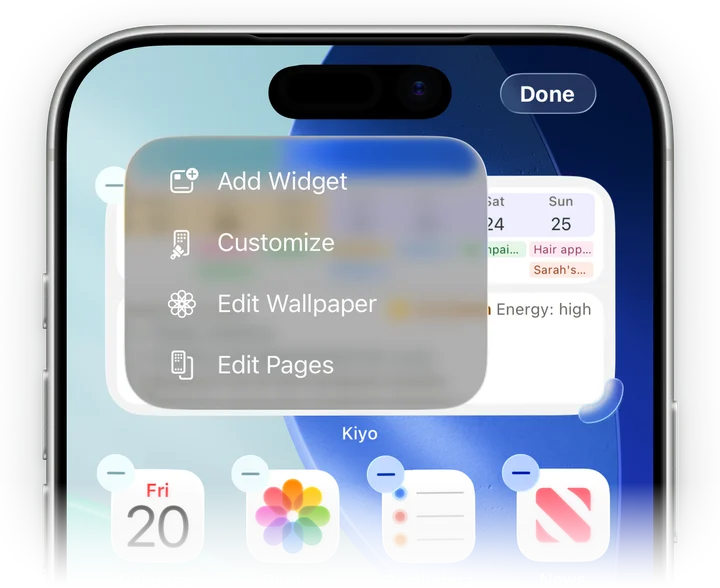
Find Kiyo and choose a size
Search for Kiyo in Search Widgets, swipe to choose a size (small: today’s to-dos; medium and large: this week’s dates and events plus today’s to-dos, with more shown in large), then tap Add Widget.
Tap Done
Tap Done to finish; the widget stays on your Home Screen and displays updates saved in Kiyo.
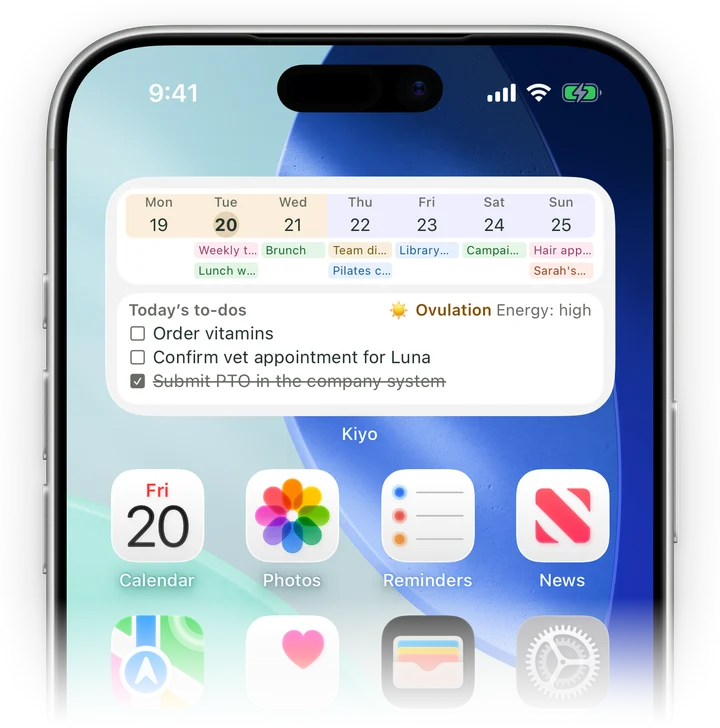
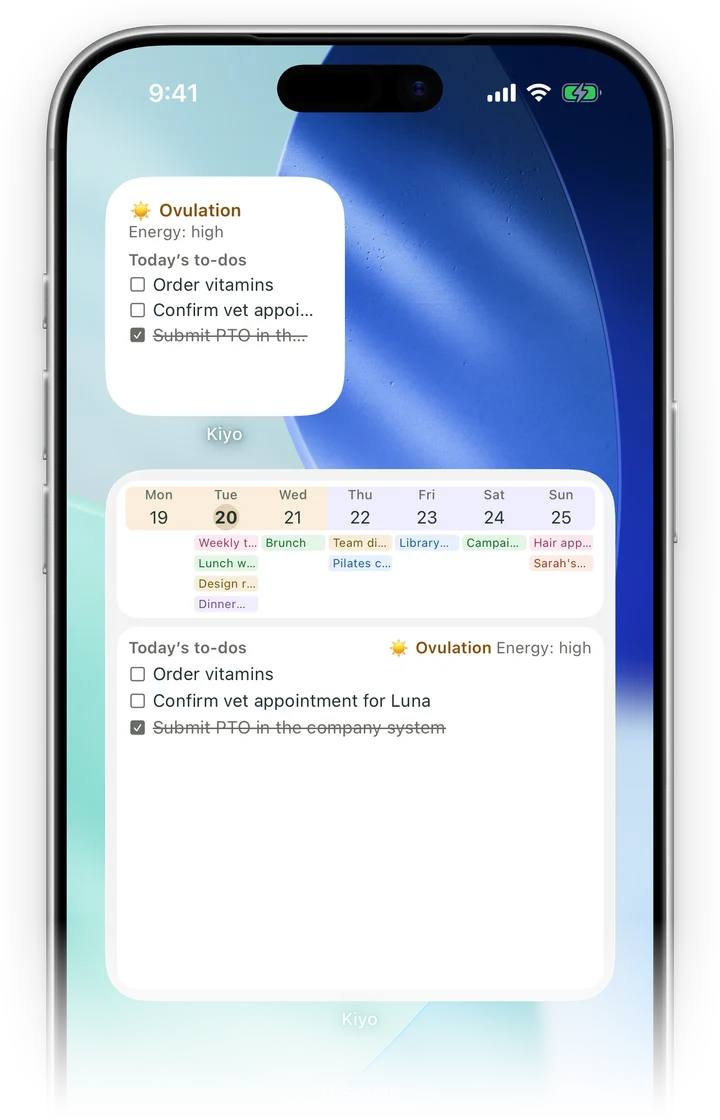
Screenshots show demo data. Cycle phase colors and the phase line appear only when cycle features are on; phase names are hidden in Discreet mode.
Add a Lock Screen widget
Touch and hold your Lock Screen → Customize → Lock Screen → tap the widget area → Kiyo. The rectangular widget shows today’s to-dos with a done count and the next open to-do; its title stays hidden until you unlock your iPhone.
Related questions
Kiyo isn’t in the widget list.
Check that you have Kiyo 1.2.6 or later and iOS 18 or later. Open Kiyo once, then search the widget list again.
The widget looks empty or out of date.
The widget shows what Kiyo last saved, so open Kiyo to refresh it. It switches to the next day automatically at midnight.