Planner Apps With Period Tracking: How to Choose the Right Setup
To see your period dates next to your plans, you can add them to your calendar yourself, pair a period tracker with your calendar, or use a planner that shows your estimated cycle alongside events. Choose by where you plan, whether the setup imports records you keep, where your cycle data goes, and whether you can turn cycle features off.

Do you need a period tracker, a planner, or both?
It depends on which job comes first for you.
- Tracking first: logging flow, symptoms, mood and other details over time. Dedicated period trackers are built for this. If detailed symptom logging matters most, one will serve you better than a planner.
- Planning first: seeing when your cycle phases are expected as you decide when to book a trip, take on a demanding week or leave room in your plans. That's a planner's job.
If you need both, a common setup is to keep logging in your tracker and bring those records, or at least the dates, into the place where you plan.
Five ways to see your period next to your plans
These are the main setups, from the simplest to the most integrated. Product details come from each company's own App Store listing or help page, as of October 2026. Kiyo, which publishes this blog, is a personal planner for events, to-dos and habits on the web and iPhone. It's an example of the fifth setup.
| Setup | Where you see your cycle | What it takes | Best for | Examples (as of October 2026) |
|---|---|---|---|---|
| 1. Calendar entries you add yourself | In your calendar, as all-day events | Adding and moving each entry by hand | A simple marker in the calendar you already use | All-day events in Google Calendar, set to Private or kept on a separate calendar (see adding your period to Google Calendar) |
| 2. A period tracker you check separately | In the tracker, apart from your calendar | Logging in the tracker and comparing dates yourself | Detailed cycle and symptom tracking | Apple Health Cycle Tracking (Health app and Apple Watch); Clue and Flo, which also track symptoms |
| 3. A period tracker that shows your calendar | In the tracker's calendar, alongside your events | Logging in the tracker | Tracking first, with a look at your schedule | Cube Period Tracker, which shows events from Apple's Calendar app in its month view |
| 4. A planner with cycle phases built in | In the planner's timeline or schedule, by phase | Depends on the app; some read Apple Health | Planning shaped around your phases | Structured's Cycle Seasons on iOS and iPadOS (reads Apple Health and needs at least three tracked cycles there); Essence, whose scheduling tips sync to Google Calendar |
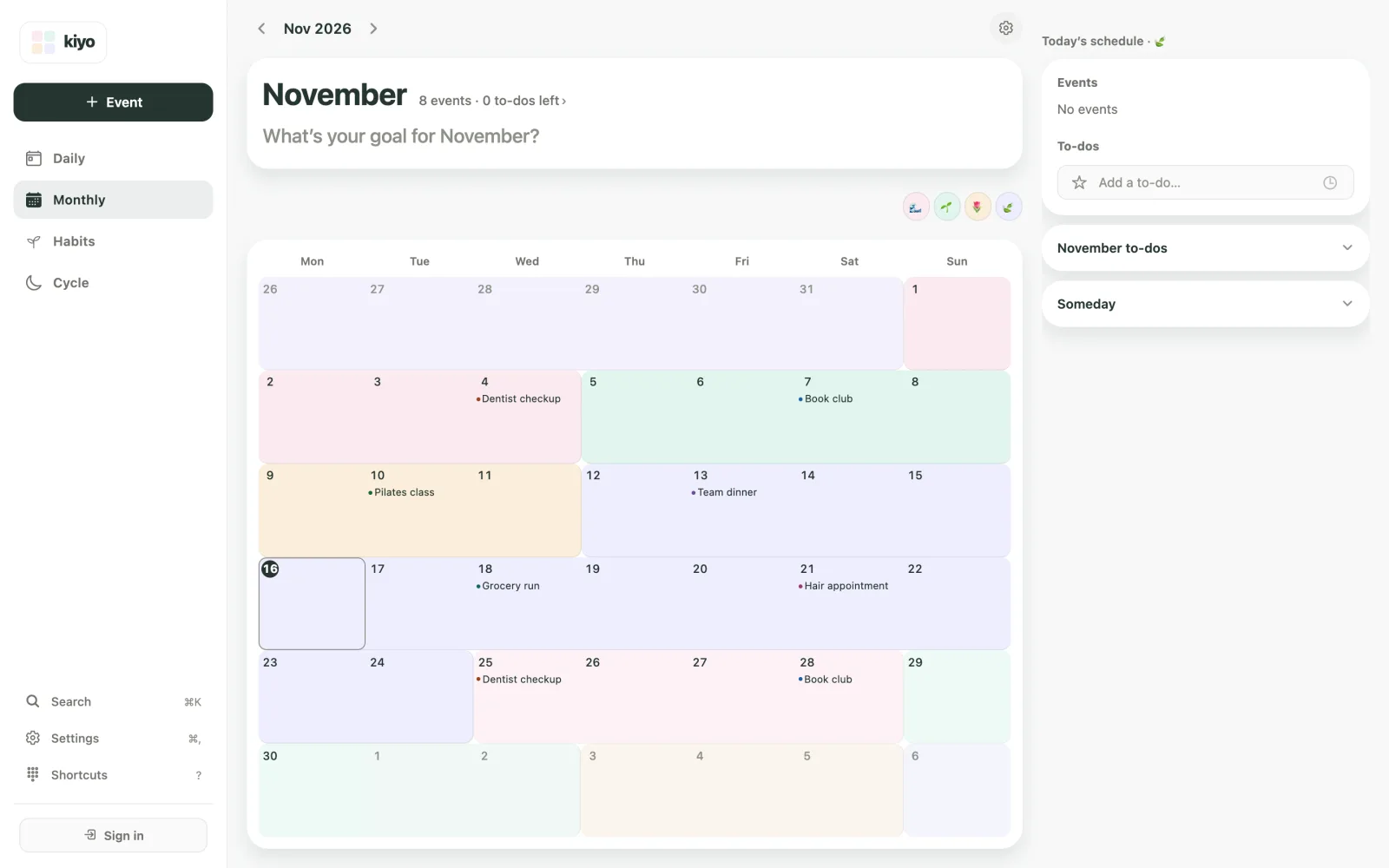
| 5. A planner with an optional cycle layer | Behind your events on a monthly calendar, as background color | Logging period starts, or importing them on iPhone | Planning first, with the cycle as context | Kiyo, on the web and iPhone |
Features change often, so check a product's own page before you rely on any of these details.
What should you check before you choose?
Whichever setup you lean toward, these questions are worth answering first:
| What to check | Why it matters | Question to ask |
|---|---|---|
| Same calendar as your plans | Otherwise you're still comparing two apps in your head | Does the cycle appear where I already look at my week? |
| Records you already keep | Re-entering months of history is a chore | Can it import from Apple Health or the app I use now? |
| The calendar you already use | Moving every appointment is a big ask | Does it connect to my existing calendar? |
| Tasks and habits | A day isn't only appointments | Do to-dos and habits keep their own format, or become events? |
| Off switch and consent | You may want the planner without the cycle | Is it off until I turn it on, and can I delete my cycle records? |
| Where cycle data goes | Health data deserves a clear answer | Is it stored on servers, and is it ever sent to connected calendars? |
How Kiyo answers these (as of October 2026)
- Same calendar: estimated phases appear as background colors behind your events in Monthly, and Daily brings the day's events, to-dos and habits together.
- Existing records: on iPhone, Kiyo can import the period records you've logged in Apple Health. Otherwise, you enter the date your last period started, your usual cycle length and your usual period length.
- Your calendar: Google Calendar (your primary calendar) and Google Tasks (your default list) connect after you sign in.
- Tasks and habits: events, to-dos (with stars and Someday) and habits each keep their own format.
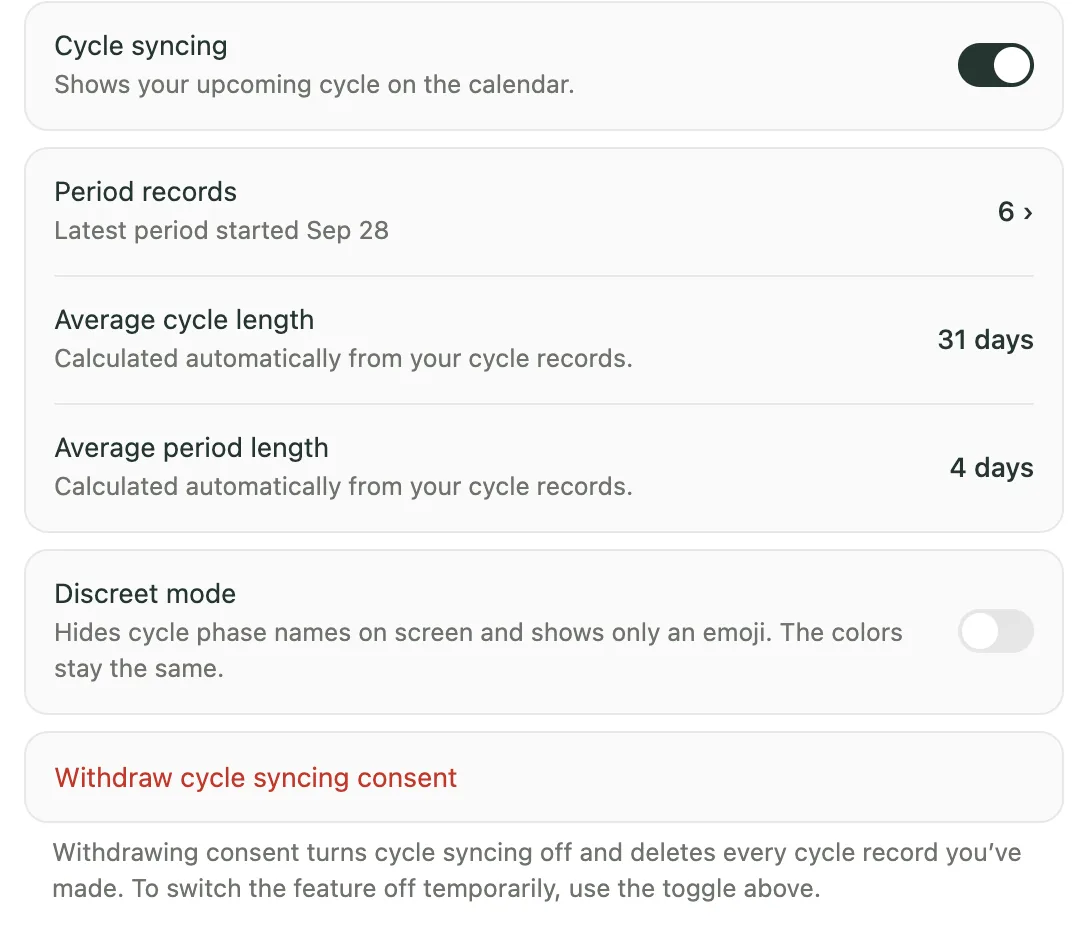
- Off switch and consent: cycle features are off by default and require separate consent. You can turn cycle features off with a switch, delete your cycle records by withdrawing consent, or use Discreet mode to replace phase names with emoji.
- Your data: cycle records stay on your device by default and are also stored on servers used by Kiyo in Japan if you sign in. They're never sent to Google Calendar or Google Tasks, and they aren't used for advertising or sold. See what Kiyo sends to Google, and what it stores.
- Price and languages: free. The web app is available in English, Korean, Japanese, Spanish and Portuguese.
Can you see Apple Health cycle predictions in your calendar?
Apple's guide to Cycle Tracking describes predictions in the Health app on iPhone and the Cycle Tracking app on Apple Watch, plus optional notifications before your next period or fertile window. It doesn't describe viewing those predictions in the Calendar app. To see your cycle next to your plans, add calendar entries yourself or use an app that reads your Apple Health records.
In Kiyo's iPhone app, the import works like this:
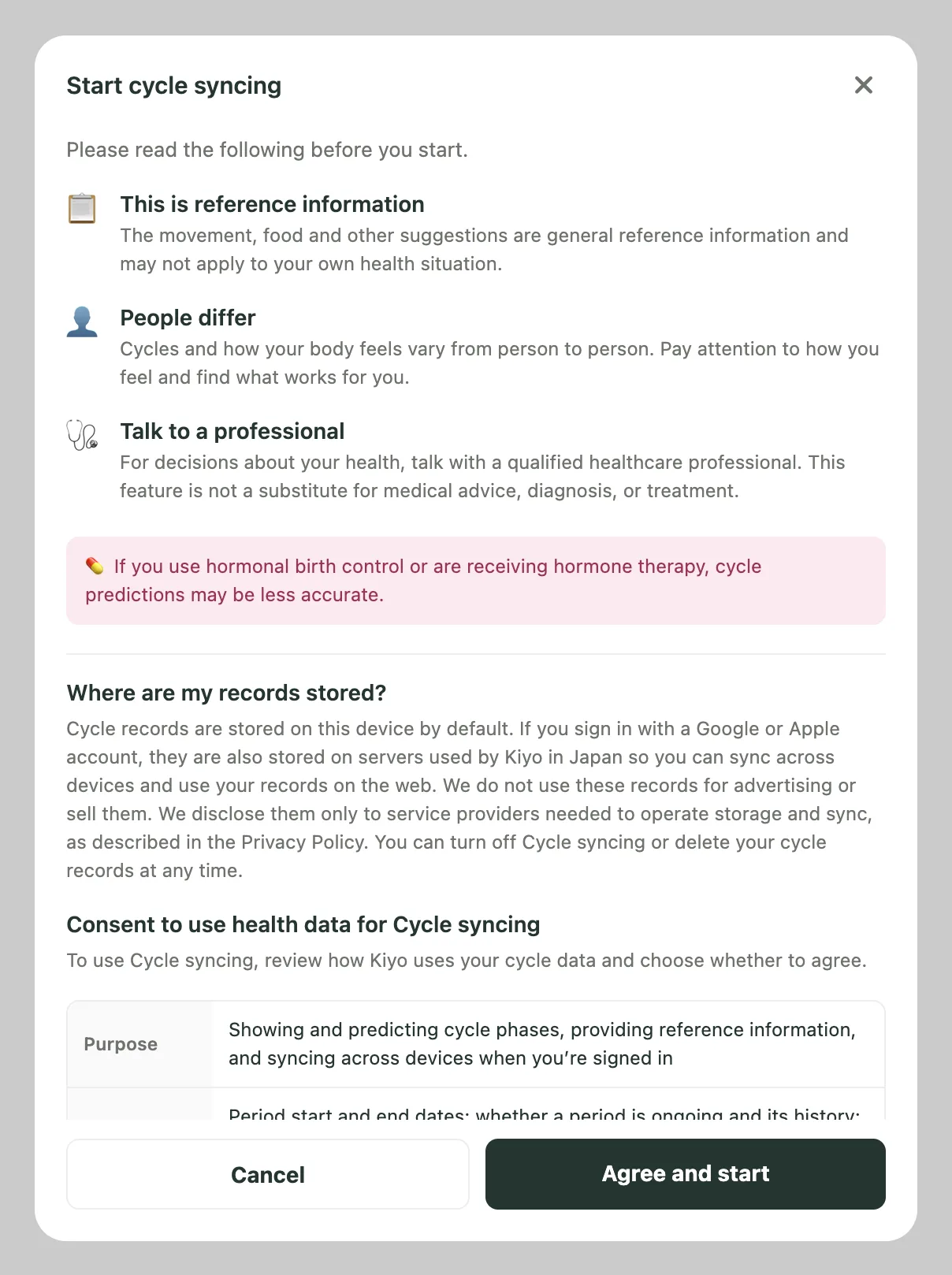
- Turn on cycle syncing. Tap Set up on the cycle card in Monthly, review the consent screen and choose Agree and start.
- Choose the import. At the first question, "Are you on your period right now?", choose Import from Apple Health. You can also find the same import option later under Settings → Cycle syncing → Apple Health → Kiyo.
- Allow access. When iOS asks, allow Kiyo to read your records. Kiyo shows how many cycles it found—for example, "6 cycles will be imported."—and adds them when you tap Import.
After the first import, Kiyo brings in new records when you open the app. This automatic import is on by default; the same switch turns it off. Kiyo reads only your menstrual records and never changes or deletes anything in Apple Health. It imports the periods you've logged, not Apple's predictions, and calculates its own estimate from them. If you sign in, imported records are handled like your other cycle records, as the privacy policy explains.
Can I use Kiyo on the web or Android?
To import from Apple Health, you need Kiyo's iPhone app. On the web, you set up the cycle layer by answering four questions: whether you're on your period now, when your last period started, your average cycle length and your average period length. You can change your answers later in Settings, where you'll also find Discreet mode and the option to withdraw consent.
You can get the Android app on Google Play, or use Kiyo's web app in an Android browser and add it to your home screen. If you'd rather keep cycle records on a computer, see how to track your period online.
The planner still has to work without the cycle
A work meeting needs a time. Picking up a parcel needs a checkbox. A stretching habit needs a record of the days you did it. Whichever app you choose, check that these everyday parts work well on their own, because you'll use them every day and the cycle view only some of the time. How cycle context works in Kiyo shows how the two fit together.
Common questions
Is there a planner app with period tracking?
Yes. There are a few different setups. Some period trackers show your calendar inside them, some planners build cycle phases into the schedule, and Kiyo is a planner that can show your estimated cycle behind your events on a monthly calendar.
Can I see my Apple Health period predictions in my calendar?
Apple's guide describes Cycle Tracking predictions in the Health app, on Apple Watch and in notifications, not in the Calendar app. To see your cycle beside your plans, add calendar entries yourself or use an app that reads Apple Health; Kiyo's iPhone app imports your logged periods and shows its own estimate on its calendar.
Does connecting Google Calendar to Kiyo share my period with Google?
No. Kiyo never sends cycle records to Google Calendar or Google Tasks; only events and to-dos sync. What Kiyo sends to Google, and what it stores has the full list.
Can I use a planner without period tracking?
Yes. In Kiyo, cycle features are off by default, and events, to-dos and habits work without them.
Is Kiyo available on Android?
Yes. Get the Android app on Google Play, or use Kiyo's web app in an Android browser and add it to your home screen.