Does Google Calendar Have a Habit Tracker? 3 Ways to Track Habits With Google Calendar and Tasks
Google Calendar doesn't have a habit tracker; its Goals feature was removed in November 2022. A recurring event or a repeating Google Task can help, but neither keeps a streak or completion rate. Kiyo, a personal planner for events, to-dos and habits on the web and iPhone, connects to Google Calendar and Tasks and keeps habit streaks and completion rates.
Does Google Calendar have a habit tracker?
No. Google Calendar's Goals feature was removed in November 2022, and Google pointed people to repeating events and repeating tasks instead.
Both workarounds are still available:
- A recurring event repeats on the schedule you set and holds that time on your calendar.
- A repeating Google Task can repeat every day, week, month or year. When you mark one complete, the next instance appears in your task list. Tasks with a date also show up in Google Calendar.
Neither keeps the kind of record a habit tracker does. A past event looks the same whether or not you completed the activity, and Google's help pages for repeating tasks don't describe a streak or a completion rate.
Three ways to track habits with Google Calendar and Tasks
You can track a habit using a recurring event, a repeating Google Task, or a habit tracker you use alongside Google Calendar and Google Tasks. Each option records something different.
| Recurring event | Repeating Google Task | Habit tracker beside Google (e.g. Kiyo) | |
|---|---|---|---|
| What it does | Holds a time on your calendar | Puts the next instance in your task list on its date | Records each scheduled day you checked in |
| Can you mark it done? | No | Yes, one instance at a time | Yes, one scheduled day at a time |
| Streak or completion rate | No | No | Yes |
| Where it shows | Google Calendar | Google Tasks; dated tasks also in Google Calendar | Kiyo's Habits and Daily views, never in Google |
| Fits best when | The time itself matters | It's a chore you only need to remember | You want to see whether a routine is holding up |
For help choosing between a reserved time slot and a completion record, see habit tracker or recurring calendar event. This post is about adding a habit tracker while keeping recurring events and repeating Google Tasks.
How do you add a habit tracker without leaving Google Calendar?
Keep using Google Calendar and Google Tasks, and connect them to Kiyo. You can use habits in Kiyo without an account, but you need one to connect Google, so the order matters:
- Sign in first. Open Settings in Kiyo and sign in with Apple or Google. On the web, anything you made before signing in isn't added to your account, and signing in deletes it from that browser, so sign in before you set things up. (On iPhone, Kiyo asks whether to add that device's records to your account.)
- Connect Google. In Settings → Google, choose Connect Calendar & Tasks, pick Calendar, Tasks or both, then select Connect your Google account and allow access on Google's screen. Kiyo syncs only your primary calendar and your default Tasks list.
- Add a habit. In Habits, choose + Habit, give it a name or just an emoji, switch on Specific days and pick the days you plan to do it, then select Create habit.
What syncs between Kiyo and Google?
Google events and tasks sync to Kiyo. Changes you make in Kiyo sync back to Google only while Sync Kiyo items to Google is on. That switch and Import from Google are both on by default. Habits stay in Kiyo either way.
| Item | Into Kiyo | Back to Google (while the switch is on) |
|---|---|---|
| Google Calendar events (primary calendar) | Shown in Daily and Monthly like any other event | Edits, moves and deletions you make in Kiyo |
| Events you create in Kiyo | — | Added to your Google Calendar |
| Google Tasks (default list) | Dated tasks in that day's TO DO; undated ones in Someday | Completions, deletions, and title and date changes |
| To-dos you create in Kiyo | — | Added to Google Tasks |
| Kiyo habits | Created and kept in Kiyo | Never |
On the web, existing Kiyo events and to-dos aren't copied without asking, even with the switch on: right after connecting, Kiyo asks whether to add them to Google too. Choose Only from now on to leave them out, or review the list and add only those you select. The iPhone app will work the same way after its next update. Until then, your first connection on an iPhone copies existing Kiyo events dated from about 30 days before to 90 days after that connection to your primary Google Calendar without asking. Reconnecting on the same iPhone also copies events created while disconnected, regardless of date, without asking. Existing to-dos aren't sent.
For what Kiyo stores about Google items, see what Kiyo sends to Google, and what it stores. To stop syncing, choose Settings → Google → Disconnect Google. Imported Google events and to-dos are removed from the device where you disconnect. The originals stay in Google. If you also want to remove what Kiyo added to Google, do that before you disconnect: see how to remove only what Kiyo added to Google Calendar.
Example: a dentist appointment, a passport renewal and a stretch
Take one Friday with three kinds of plans:
- Dentist appointment at 9:00, already in Google Calendar.
- Renew passport, a Google Task due Friday.
- Stretch, a Kiyo habit for Monday, Wednesday and Friday.
Open Friday in Daily. The dentist appointment is in Up next and on the SCHEDULE timeline, Renew passport is in TO DO, and Stretch sits with the day's habit check-ins at the top.
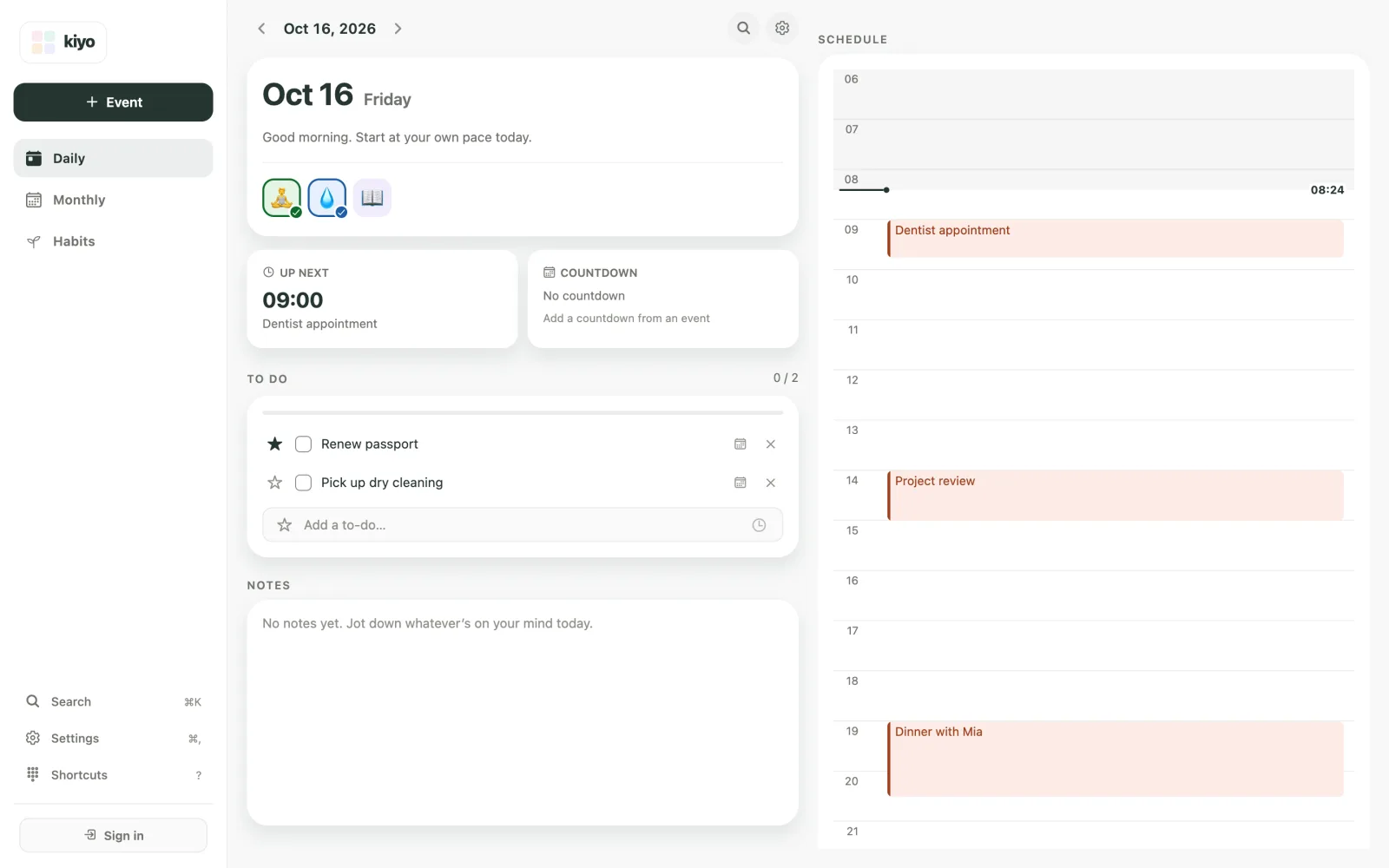
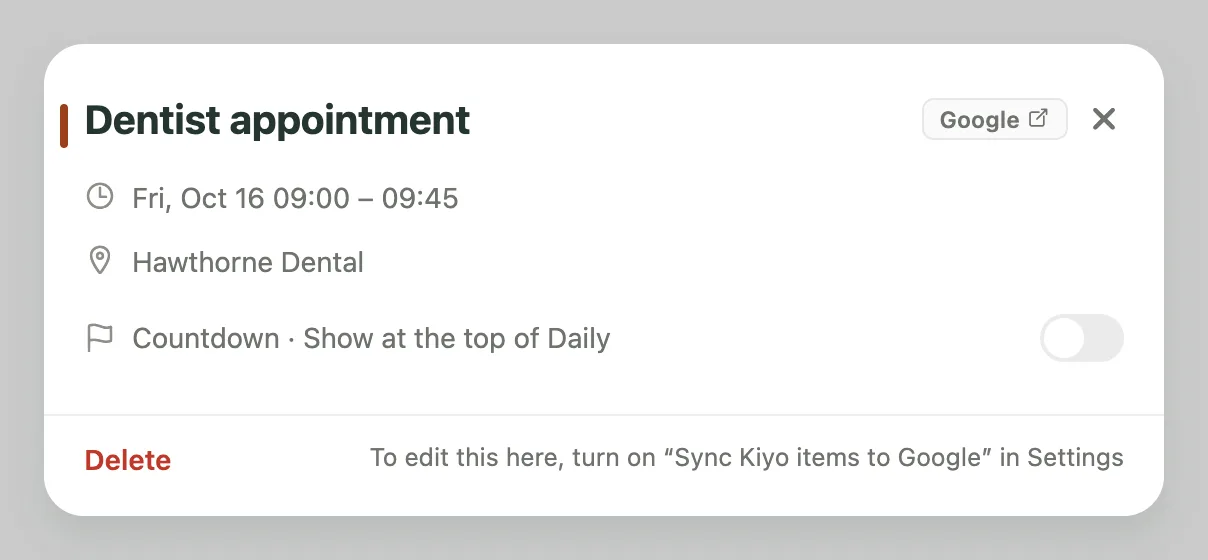
Nothing on Daily labels an item as coming from Google; Google events and tasks look like your other events and to-dos. Open the dentist appointment to see its details, including a Google ↗ chip that opens the event in Google Calendar.
Then work through the day:
- Check off Renew passport. With Sync Kiyo items to Google on, it's marked complete in Google Tasks too.
- Check in Stretch. Checking in contributes to the habit's own All-time rate and its flame badge, which counts scheduled check-ins in a row. It also contributes to This month's rate and Completion rate by weekday, both calculated across all your habits. Days you didn't pick, like Tuesday and Thursday, are rest days for Stretch and never count as misses. For how to read those numbers, see what a broken habit streak tells you.
- Leave undated tasks undated. A Google Task with no due date lands in Someday, Kiyo's list for undated to-dos in Monthly, so it doesn't crowd Friday. More in how to organize tasks without due dates.
You can also give Stretch a time with Set a time. That places it on Daily's timeline; it doesn't create a separate notification. Reminders are an iPhone feature: Kiyo can send one daily habit reminder, which stays off until you turn it on in Settings → Notifications. The web app doesn't send notifications.
Is it worth using another app alongside Google Calendar?
If Google Calendar and Google Tasks already do what you need, you may not need one. Kiyo works alongside Google Calendar rather than replacing it, and it adds three things:
- A habit record. Streaks, monthly and all-time rates, and weekday patterns, without turning habits into calendar events.
- A Daily view with a distinct format for each type of plan. Events on a timeline, to-dos on a checklist with stars and Someday, habits as check-ins.
- Optional cycle context. If you choose, Kiyo shows your estimated cycle as a color layer behind your plans. It's off by default and requires separate consent. Cycle records are never sent to Google.
The habit tracker page shows the Habits view in more detail.
Common questions
Does Google Calendar have a habit tracker?
No. Google Calendar's Goals feature was removed in November 2022. You can repeat an event or a Google Task, but Google Calendar doesn't keep a streak or completion rate for either.
Can Google Tasks track habits?
Only loosely. A Google Task can repeat every day, week, month or year. When you complete one instance, the next appears in your task list. Google's help pages don't describe a streak or completion rate for repeating tasks.
Is there a habit tracker that syncs with Google Calendar?
Kiyo connects to Google Calendar and Google Tasks while keeping habit records in its own tracker. Your Google events and dated Google Tasks appear in Kiyo's Daily view next to your habits, on the web and iPhone.
Will my Kiyo habits show up in Google Calendar?
No. Kiyo never writes habits to Google Calendar or Google Tasks. They stay in Kiyo with their own history.
Do I need an account to connect Google?
Yes. Habits, events and to-dos work in Kiyo without an account, but connecting Google requires signing in. On the web, what you made before signing in isn't added to your account, and signing in deletes it from that browser, so sign in first.